-Dark.png?width=250&height=127&name=CS-Coaching%20Systems%20Logo-Alt%20Version(1)-Dark.png)
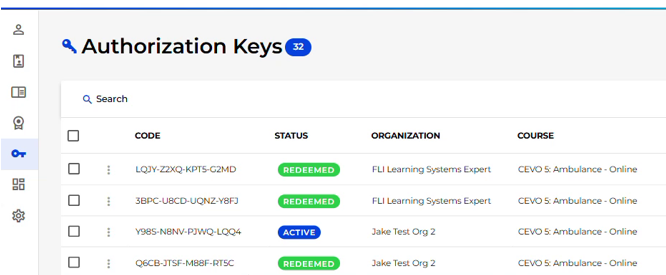
Step 1: Open the Key Grid
From the sidebar, select Authorization Keys (labeled with a key icon) to open the Key Grid.
Step 2: Find the key you need
Use Search or the Sort By control to locate the specific key. The Status column tells you whether it's available:
- Active — generated but not yet emailed or redeemed. Free to hand out.
- Emailed — already sent to a recipient through the platform, but not yet redeemed. (clicking on the word ACTIVE, you can manually toggle this to emailed once you send the key to a student)
- Redeemed — already redeemed by a student.
See the Key Grid (Authorization Keys) article for the full column reference and status lifecycle, including the Scheduled status used for future-dated Full Course assignments (available only on the Guardian Plan)
Step 3: Select and copy the code
Click into the Code cell for that row to select the code text, then copy it (Ctrl+C on Windows, Cmd+C on Mac) to paste in to an email for you student.