-Dark.png?width=250&height=127&name=CS-Coaching%20Systems%20Logo-Alt%20Version(1)-Dark.png)
Overview
The Key Grid — labeled Authorization Keys in the app — is where you manage course access keys (vouchers) for your organization. This is typically used when an organization purchases course access in bulk: rather than enrolling each student directly, you generate a batch of authorization keys and distribute them to your employees or students, who each redeem one to unlock their course.
Each row in the grid represents a single key, along with its current status and, once used, who redeemed it.
Where to find it
The Key Grid is accessible from the sidebar. Selecting it opens the grid shown below.
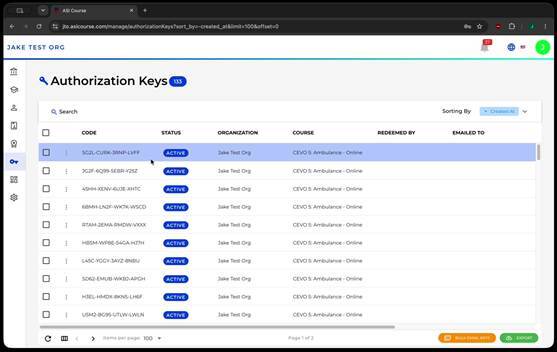
The Authorization Keys grid, showing key codes, status, and course assignment.
Understanding the grid columns
Each row represents one authorization key. The columns are:
|
Column |
What it shows |
|
Code |
The unique authorization key/voucher code itself. |
|
Status |
The key's current state: Active, Emailed, or Redeemed (see below). |
|
Organization |
The organization the key was purchased under. |
|
Course |
The course the key grants access to. |
|
Redeemed By |
The student who redeemed the key, once it's been used. |
|
Emailed To |
The email address the key was sent to, if it's been emailed. |
|
Emailed At |
The date and time the key was emailed. |
|
Created |
The date the key was generated. |
Key statuses
A key moves through up to three states over its lifecycle:
|
Status |
What it means |
|
Active |
The key has been generated and is valid, but hasn't been emailed or redeemed yet. |
|
Emailed |
The key has been sent to a recipient's email address, but hasn't been redeemed yet. |
|
Redeemed |
A student has used the key to gain access to the course. The Redeemed By column shows who. |
Tip: A key doesn't need to be emailed through the system to be redeemed — you can distribute a code any way you like. Emailed and Emailed At only reflect keys sent using the built-in email feature described below.
Emailing a key to a recipient
Selecting the menu on an individual key gives you the option to email that key directly to a recipient. This opens a dialog where you can enter the recipient's email address and send the key.
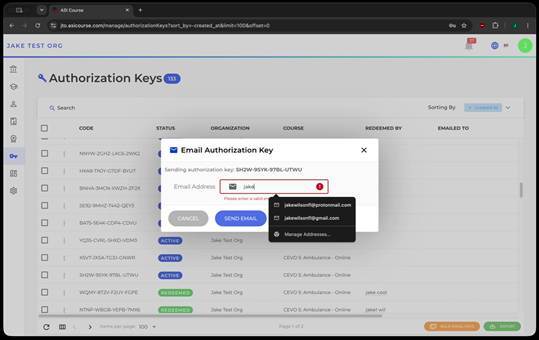
Emailing a single authorization key to a recipient.
Note: If you need to reissue a key to the same person or reassign the key to a different person, click "EMAILED" and then click "Active." This give you the ability to re-email the key.
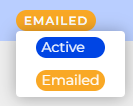
Emailing keys in bulk
To distribute multiple keys at once, select the checkboxes next to the keys you want to send, then use the bulk email action. This opens a similar dialog for sending all of the selected keys' emails in one step — useful when you're onboarding a group of employees or students at the same time.
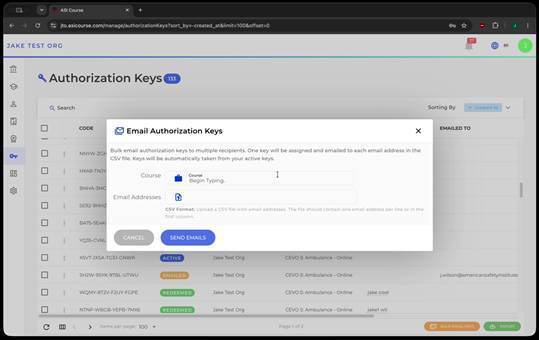
Selecting multiple keys and sending them by email in bulk.
Viewing who redeemed a key
For a key with a Redeemed status, the row includes an option to view that student's record directly — a quick way to jump from a specific key to the student who used it, without searching the Students Grid separately.
Searching and sorting the grid
The Key Grid supports both search and sorting, the same way the Enrollments and Students grids do:
- Search: Use the search box at the top of the grid to find keys — for example, by code or recipient.
- Sort: Use the Sort By control to order the grid by any column, such as Created date.
- Key Grid (Authorization Keys) = manage bulk-purchased course access codes.
- Status = Active, Emailed, or Redeemed.
- Email a single key or select multiple keys to email them in bulk.
- A Redeemed key's menu links to the student who used it.
- Search + Sort By = find and order keys by any field.
Quick reference
- Key Grid (Authorization Keys) = manage bulk-purchased course access codes.
- Status = Active, Emailed, or Redeemed.
- Email a single key or select multiple keys to email them in bulk.
- A Redeemed key's menu links to the student who used it.
- Search + Sort By = find and order keys by any field.