-Dark.png?width=250&height=127&name=CS-Coaching%20Systems%20Logo-Alt%20Version(1)-Dark.png)
Step 1: Log in
Go to asicourse.com/cos and log in with your username and password. If you haven't set a password yet or need to reset one, see the Logging In To Your Account article.
Step 2: Switch to your Student view
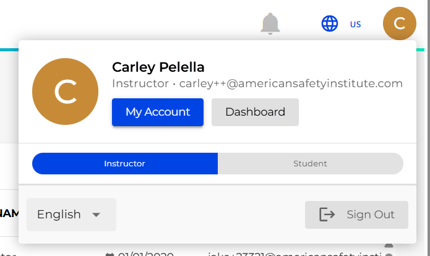
Your account can act as both an Instructor and a Student — the Instructor side is where you manage your organization's students and courses, and the Student side is where your own courses (like your TTT course) live. Use the toggle to move between them:
- Select your avatar in the top-right corner of the screen.
- In the menu that opens, find the Instructor / Student toggle.
- Select Student.
Step 3: Find your course on the Dashboard
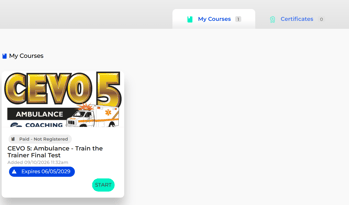
Selecting Student takes you to your own Dashboard, under My Courses. Your Train the Trainer course appears here alongside any other courses assigned to you.
Step 4: Start the course
Select Start on your Train the Trainer course card to begin. The card also shows its current status (for example, Paid - Not Registered) and its expiration date.
Step 5: Complete the Course and Get your Certificate
After completing the course, click on the Certificates tab on your dashboard to access your certificates.