-Dark.png?width=250&height=127&name=CS-Coaching%20Systems%20Logo-Alt%20Version(1)-Dark.png)
Step 1: Go to the login page
Go to asicourse.com/cos in your browser. Bookmark this page for easy access.
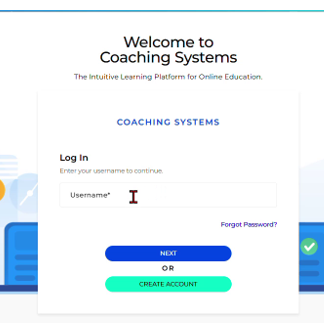
Step 2: Enter your email and password
Enter your email address in the Username field and select Next.
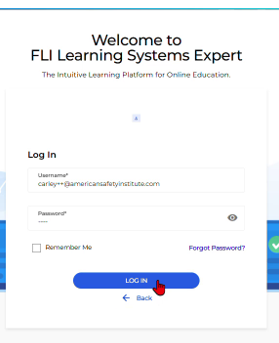
On the next screen, enter your password — or the temporary password from your welcome email, if this is your first time logging in — and select Log In.
Note: This screen will now show your agency name.
Step 3: Open My Account
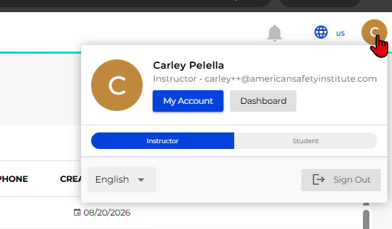
Once logged in, select your profile icon in the top right corner of the screen, then choose My Account from the menu that appears.
Step 4: Go to Security
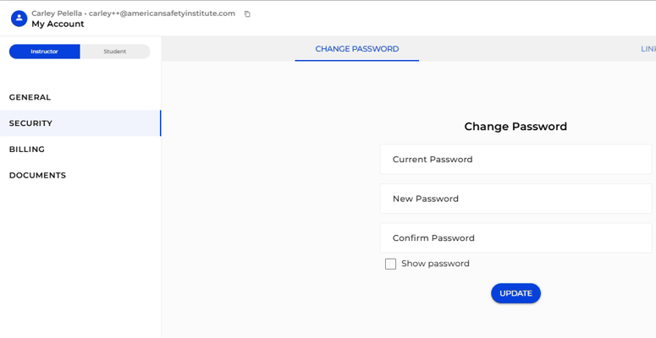
In the My Account panel, select Security from the left-hand list. This opens the Change Password tab by default.
Step 5: Enter and confirm your new password
Enter your Current Password, then your New Password, then repeat it in Confirm Password. Select Update to save the change.