-Dark.png?width=250&height=127&name=CS-Coaching%20Systems%20Logo-Alt%20Version(1)-Dark.png)
Overview
The Students Grid gives you a single view of every student in your organization — one row per student. It's the roster counterpart to the Enrollments Grid: where the Enrollments Grid is organized by enrollment (one row per course enrollment), the Students Grid is organized by student, so you can look up a specific student and see everything associated with their account in one place.
Where to find it
The Students Grid is accessible from the sidebar.  Selecting it opens the grid shown below.
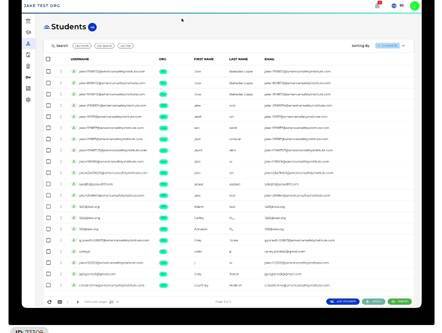
The Students Grid, showing the student roster with search, sort, and column controls.
Understanding the grid columns
By default, each row shows:
|
Column |
What it shows |
|
Username |
The student's unique login identifier. |
|
Org |
The organization the student belongs to. |
|
First Name / Last Name |
The student's name. |
|
|
The student's email address on file. |
Additional fields — such as Status, Course, Date of Birth, Phone, and Created At — can be added to the grid using the column visibility control described below.
Choosing which columns are visible
A column visibility control near the bottom of the grid lets you choose exactly which fields appear as columns. Use it to show fields you care about (like Status or Date of Birth) and hide ones you don't need for a given task.
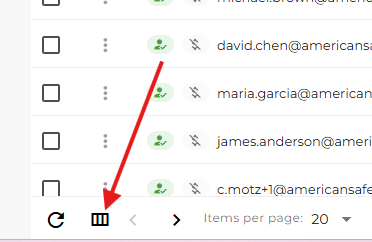
The column visibility control lets you toggle which fields display in the grid.
Opening a student's record
Clicking on the 3 dot elliptical to the left of the student's username, and clicking 'edit profile' opens a student's record, starting on the General tab.
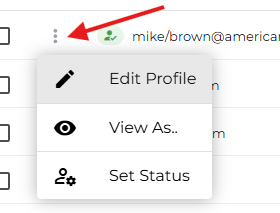
From here you can view and manage everything tied to that student's account:
|
Tab |
What it contains |
|
General |
The student's basic information — name, email, organization, date of birth, gender, phone numbers, and username settings. |
|
Security |
Where a student can reset their password |
|
Billing |
Billing details associated with the student's account. |
|
Courses |
Every course the student is enrolled in, along with registration and payment status. |
|
Documents |
Documents on file for the student if applicable |
|
Certificates |
Certificates the student has earned, including completion and certification dates. |
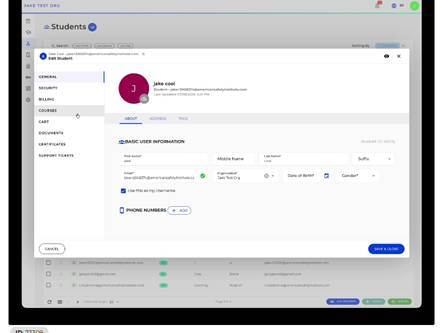
A student's record, opened to the General tab, showing basic information fields.
Searching and sorting the grid
The Students Grid supports both search and sorting so you can quickly find the student or group of students you're looking for:
- Search: Use the search box at the top of the grid to find students — for example, by name or email.
- Sort: Use the Sort By control to order the grid by any column, such as First Name or Created At.
- Students Grid = every student in your organization, one row per student.
- Column visibility control = choose which fields display as columns.
- Select a row = open that student's full record (General, Security, Billing, Courses, Cart, Documents, Certificates, Support Tickets).
- Search + Sort By = find and order students by any field.
- Checkboxes = select students first to enable bulk actions.
Tip: Search and sort can be combined — for example, search by email and then sort the results by first name to scan them alphabetically.
Quick reference
- Students Grid = every student in your organization, one row per student.
- Column visibility control = choose which fields display as columns.
- Select a row = open that student's full record (General, Security, Billing, Courses, Cart, Documents, Certificates, Support Tickets).
- Search + Sort By = find and order students by any field.
- Checkboxes = select students first to enable bulk actions.