-Dark.png?width=250&height=127&name=CS-Coaching%20Systems%20Logo-Alt%20Version(1)-Dark.png)
Overview
The Certificates Grid gives you an organization-wide view of every certificate that's been issued — one row per certificate, across all students and all courses. It's a companion to the Certificates tab on an individual student's record (see the Students Grid article). This grid is especially hlpful when you want to search, sort, or download certificates across your whole organization at once.
Where to find it
The Certificates Grid is accessible from the sidebar. Selecting it opens the grid shown below, with a running count of total certificates next to the page title.
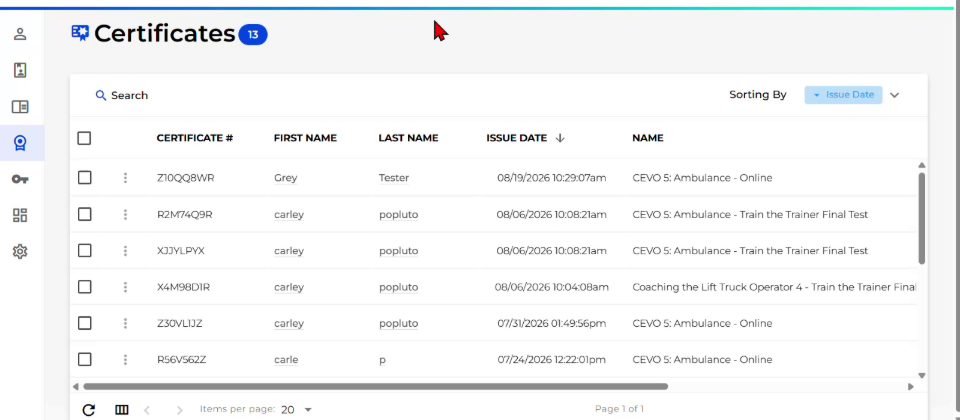
The Certificates Grid, showing every certificate issued across the organization.
Selecting Certificates
Each row has a checkbox, the same way the Students, Enrollments, and Key grids work. Selecting the checkbox in the header selects every certificate currently loaded in the grid.
As soon as you select one or more certificates, a selection bar appears in the bottom-right corner showing how many are selected, along with View and Download actions.
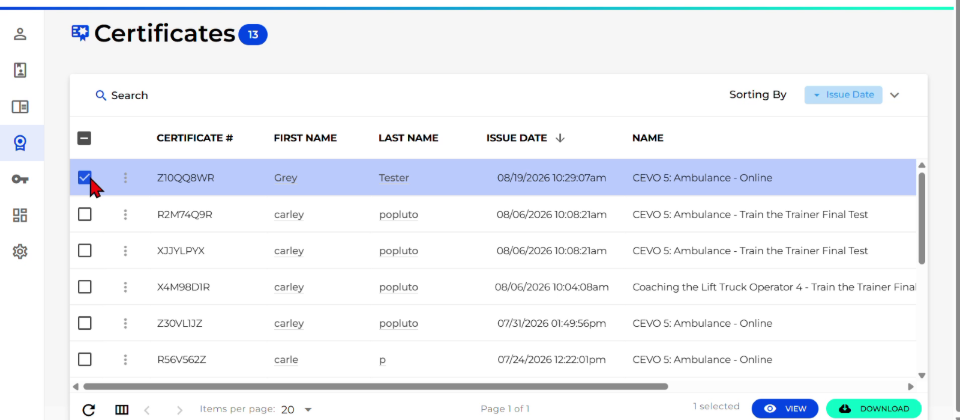
Selecting a single certificate reveals the View and Download actions.
You can select as many certificates as you need at once — for example, scroll to find more students, then check additional rows to build up a larger selection before viewing or downloading.
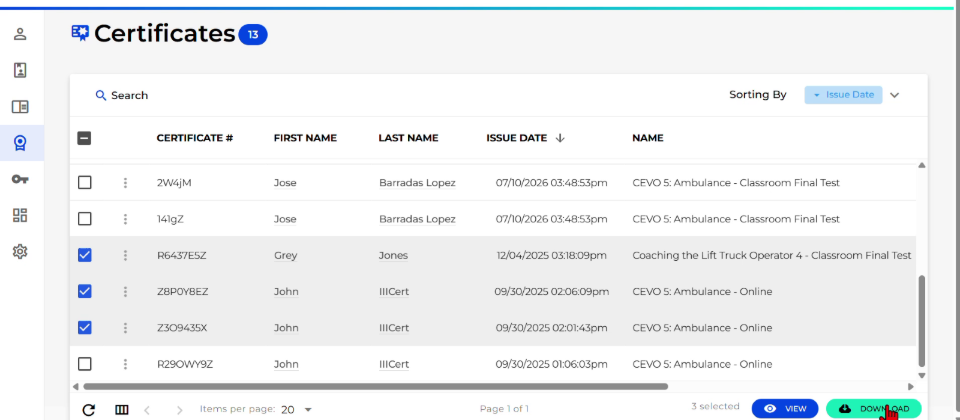
Multiple certificates selected at once — the selection count updates and Download is ready to use.
Viewing a certificate
With one or more certificates selected, select View to open a preview.
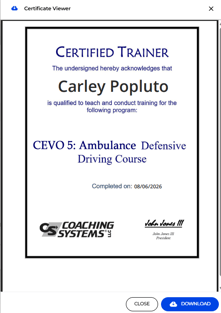
Selecting View opens a preview dialog for the selected certificate(s).
Downloading certificates
With one or more certificates selected, select Download to save them.
This is the same mechanism referenced as the bulk certificate download in the SmarterU to ASI Course Migration Guide — select any number of certificates from the grid and use Download to retrieve them together, rather than opening students one at a time.
Searching and sorting the grid
Like the other grids, the Certificates Grid includes a Search box and a Sorting By control at the top.
- Search: use the search box at the top of the grid to find certificates.
- Sort: use the Sorting By control (defaulted to Issue Date) to change how the grid is ordered.
- Certificates Grid = every certificate issued across the organization, one row per certificate.
- Select one or more checkboxes to reveal View and Download actions for your selection.
- View opens a preview of the selected certificate(s); Download saves them.
- Search and Sorting By (defaulted to Issue Date) help you find and order certificates.
- What the certificate preview shows once View finishes loading.
- What the Download action actually produces (file format, single file vs. one per certificate, naming).
- The full set of Search and Sorting By options.
- An unrelated toast reading “Shipped At date Updated Successfully” appeared during this recording while opening the View dialog — likely unrelated to certificates, but worth flagging to engineering in case it points to a stray background action.
Quick reference
- Certificates Grid = every certificate issued across the organization, one row per certificate.
- Select one or more checkboxes to reveal View and Download actions for your selection.
- View opens a preview of the selected certificate(s); Download saves them.
- Search and Sorting By (defaulted to Issue Date) help you find and order certificates.