-Dark.png?width=250&height=127&name=CS-Coaching%20Systems%20Logo-Alt%20Version(1)-Dark.png)
Before you begin
You don’t need to create an account yourself — your organization has already set one up for you. All you need is the email you’ll receive and a few minutes to set your password.
Step 1: Find your Course Assigned email
Look for an email with the subject Course Assigned: [Course Name]. It will show your organization’s name as the sender and come from info@americansafetyinstitute.com.
Inside, you’ll see the course you’ve been assigned, your username, and a Set Your Password button if this is your first time logging in.
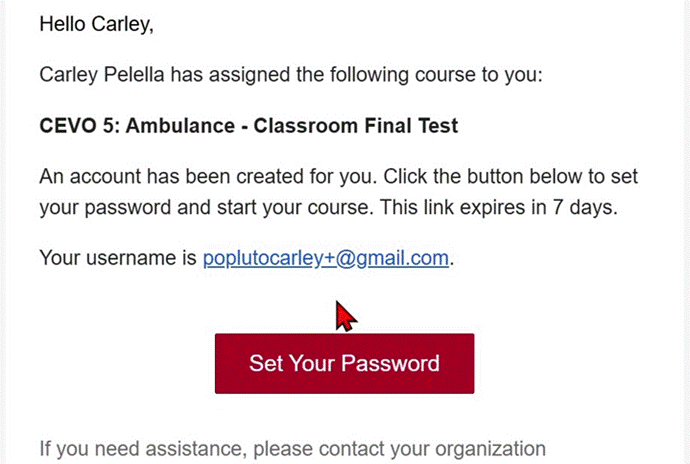
The Course Assigned email, with your username and the Set Your Password button.
|
Tip: Don’t see it? Check your spam or junk folder. Your username will be your email. |
Step 2: Set your password
Select Set Your Password in the email. A welcome page for your organization opens with your first and last name already filled in — check that they’re correct.
Type a password in New Password, type it again in Confirm Password, then select SET PASSWORD.
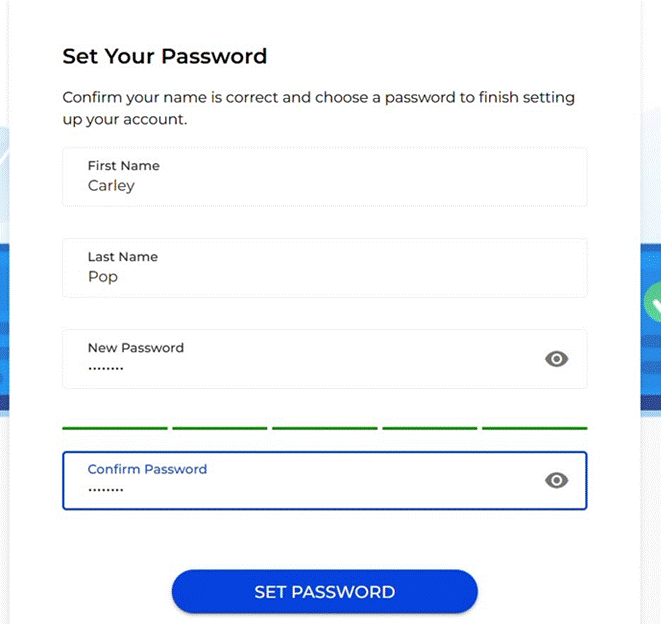
Confirm your name, then create and confirm your password.
You’ll see a green Password set successfully. message, and you’ll be taken straight to your dashboard.
Step 3: Start your course
Your course appears on your dashboard under My Courses, marked Paid - Not Registered. That just means you haven’t filled out your registration yet. Select START to begin.
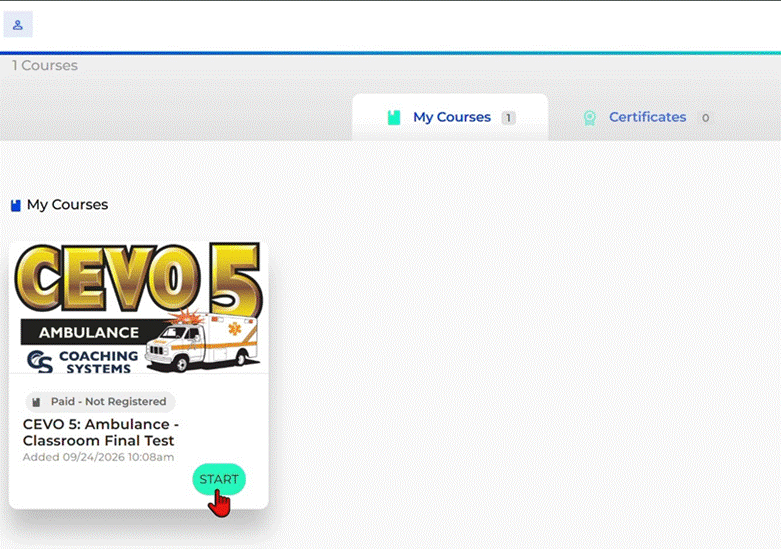
Your dashboard, with your assigned course ready to start.
Step 4: Answer the Registration Questions
Before the course content opens, you’ll see a Registration Questions screen. Select Begin.
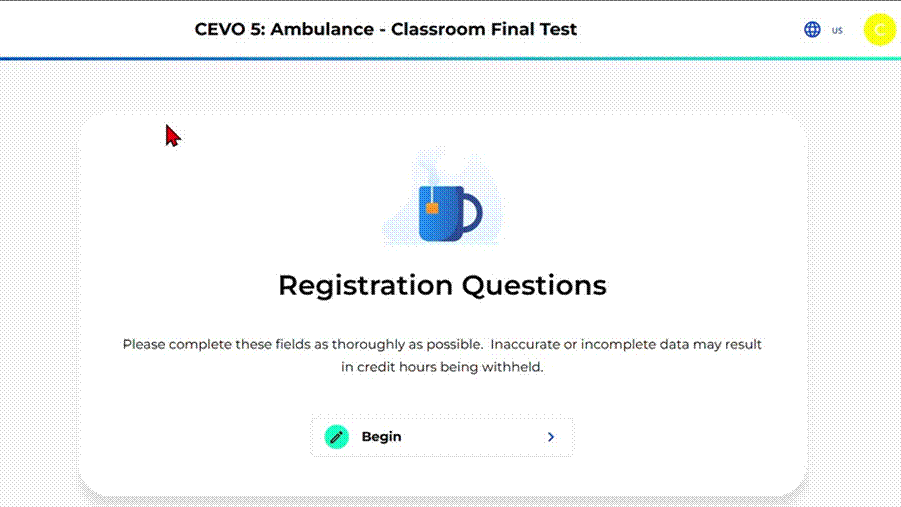
The Registration Questions screen appears the first time you start your course.
Step 5: Complete the Course
You don’t have to finish everything at once. If you leave the course, you’ll be asked Are you sure you want to exit? Select EXIT COURSE to go back to your dashboard — your progress is saved. Select STAY HERE to keep going.
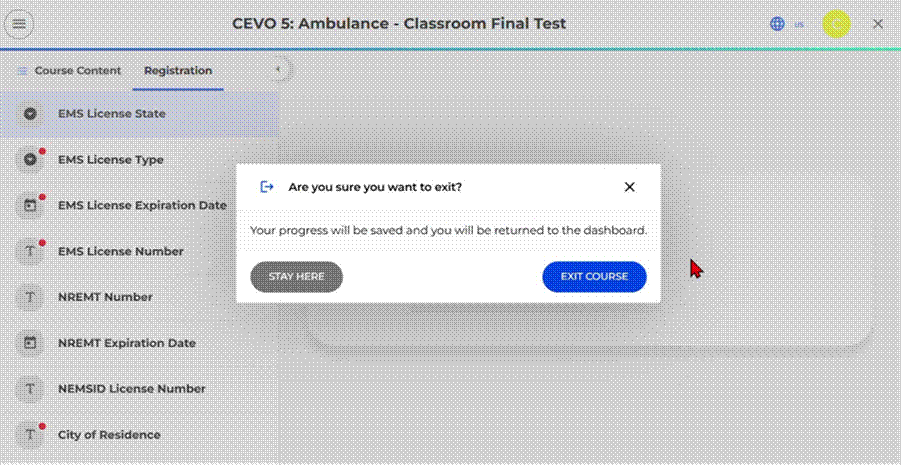
Your progress is saved when you exit.
When you come back, your course shows under Recent Activity marked In Registration. Select CONTINUE on the course, or CONTINUE LAST COURSE at the top of your dashboard, to pick up where you left off.
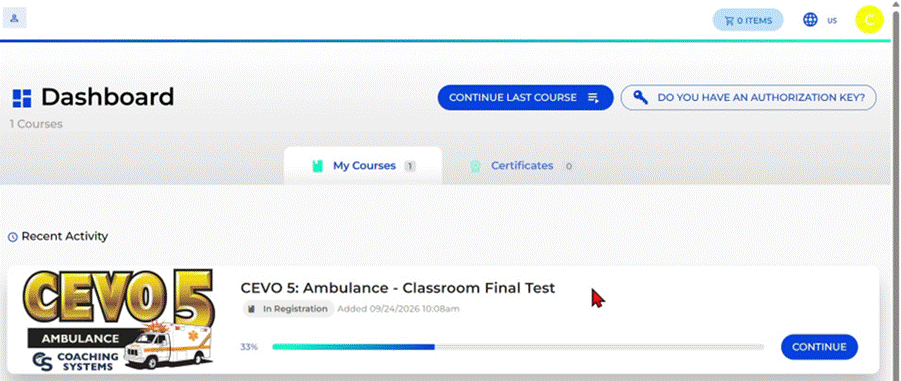
Pick up where you left off with Continue.
What’s next
See theTaking and Finishing a Course article for what to expect, including how to download your certificate when you’re done.