-Dark.png?width=250&height=127&name=CS-Coaching%20Systems%20Logo-Alt%20Version(1)-Dark.png)
Overview
A Remediation Course is a supplementary course you can assign to students to address a specific gap. Unlike a Full Course, assigning a Remediation Course does not require or consume an Authorization Key — it's assigned directly, the same way a Refresher Course is.
Step 1: Select students
From the Students Grid, use the checkboxes to select one or more students. Once at least one student is selected, an Assign action becomes active, labeled with the number of students selected.
Step 2: Choose Remediation Course as the type
Selecting Assign opens a dialog where you choose what to assign. Choose Remediation Course rather than Full Course or Refresher Course.
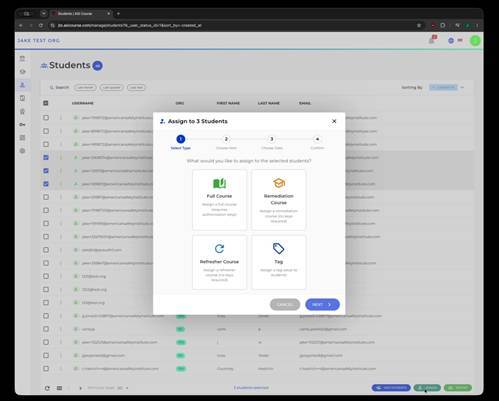
Choosing the Remediation Course type when assigning to selected students.
Step 3: Choose the remediation course and confirm
Next, choose the specific remediation course to assign to the selected students, then select Assign to complete the process. Because no Authorization Key is required, there's no key-availability check to worry about here — the assignment goes through as long as a valid remediation course is selected.
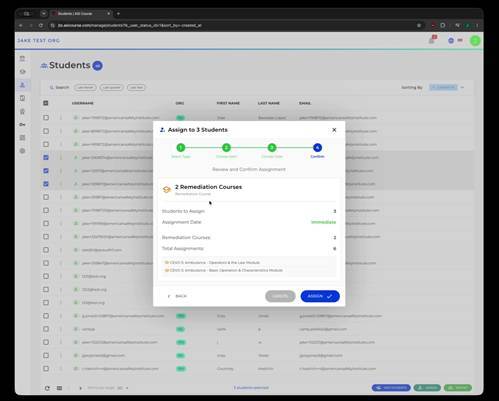
Finalizing the selection of enrollments.
Tip: If you need to assign more than one remediation course at a time, you can select multiple items in this step before confirming.
Where the assignment shows up
Once assigned, the course appears on each student's own record under the Courses tab, and as a new row on the Enrollments Grid with Type set to Remediation.
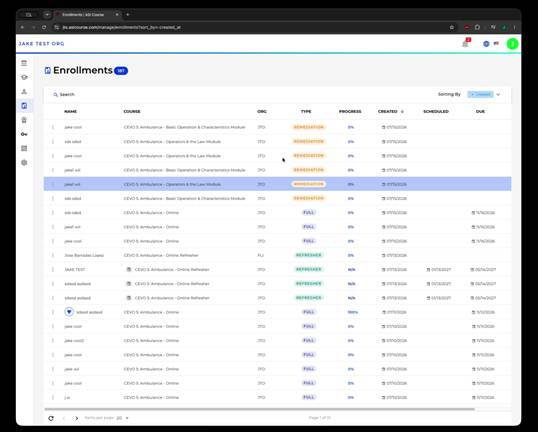
Newly assigned remediation courses appearing in the Enrollments Grid.
Quick reference
- Select students in the Students Grid, then use Assign to Students.
- Choose Remediation Course as the type — no Authorization Key is required.
- Choose the specific remediation course, then confirm the assignment.
- Assigned courses appear on the student's Courses tab and as Remediation rows in the Enrollments Grid.