-Dark.png?width=250&height=127&name=CS-Coaching%20Systems%20Logo-Alt%20Version(1)-Dark.png)
Who this is for: what is an Imported Org?
Definition — An Imported Org is an organization whose student records — including which courses they've already completed — were migrated into this platform from another, external system, rather than being built up natively by students taking courses here from scratch.
This matters because assigning a refresher depends on knowing whether a student already completed the related full course. For an Imported Org, that completion history comes from the imported data rather than from activity recorded natively in this system. This manual assignment workflow is specifically for that situation: use it for organizations whose students' course-completion history was brought in from elsewhere, so their refreshers can be scheduled correctly going forward.
Tip: If an organization's students completed their courses natively in this system (not imported from elsewhere), refreshers are generally expected to follow the normal course lifecycle rather than needing this manual workflow.
Eligibility requirements
Before a refresher can be assigned to a student, three conditions must be met:
|
Requirement |
Why it matters |
|
1. The full course must already be completed |
You can't assign a refresher for a course the student hasn't finished yet. The underlying Full Course enrollment must show as completed. |
|
2. No refresher already in progress |
If the student already has an active, not-yet-completed refresher for that course, another one can't be assigned on top of it. |
|
3. No refresher already scheduled |
If a refresher for that course is already scheduled for a future date, the system won't let you schedule a second one. |
If any of these aren't met for a given student, that student is excluded from the assignment and the system tells you why.
Step 1: Select students
From the Students Grid, use the checkboxes to select one or more students, then use the Assign action that becomes clickable once at least one student is selected.
Step 2: Choose Refresher Course as the type
In the Assign dialog, choose Refresher Course rather than Full Course or Remediation Course.
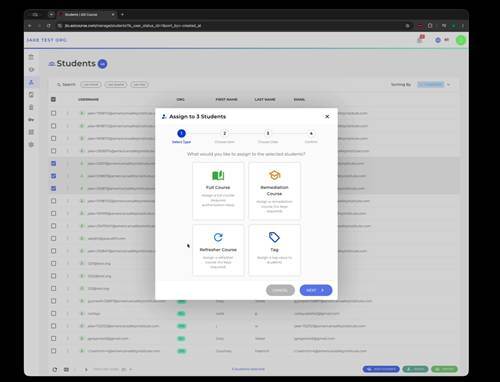
Choosing the Refresher Course type when assigning to selected students.
Step 3: Choose the refresher — and resolve any eligibility issues
Next, choose the specific refresher course. If one or more selected students don't meet the eligibility requirements above, you'll see a warning identifying exactly which students are affected and why — for example, that a student already has that refresher scheduled for a future date.
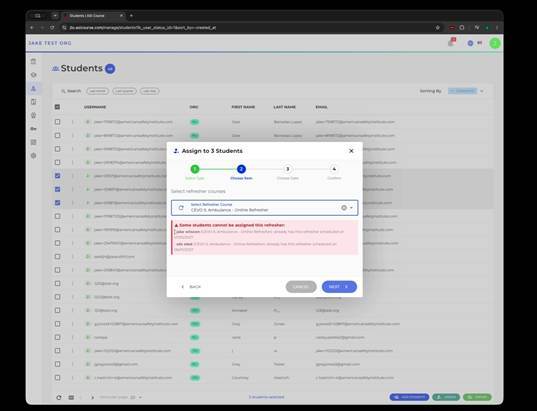
A validation warning naming the ineligible students and the reason for each.
You can then adjust your selection — for example, narrowing down to just the eligible student(s) — before continuing.
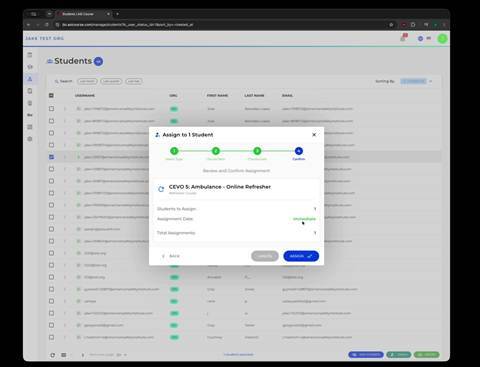
Proceeding with an eligible student after resolving the warning.
Where the assignment shows up
Once assigned, the refresher appears on the student's own record under the Courses tab, and as a new row on the Enrollments Grid with Type set to Refresher.
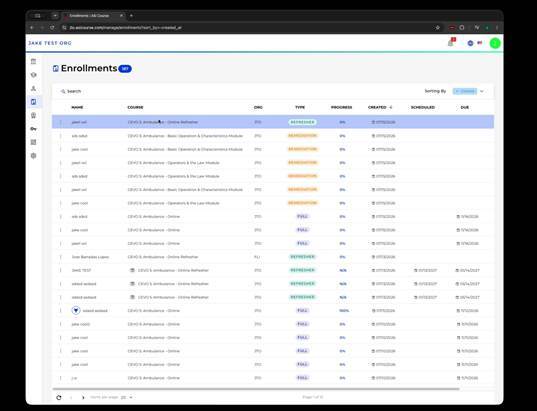
The newly assigned refresher course appearing in the Enrollments Grid.
Quick reference
- This workflow is for Imported Orgs — organizations whose student and completion records were migrated in from another system.
- A student needs a completed full course, no refresher already in progress, and no refresher already scheduled to be eligible.
- Select students, choose Refresher Course, then choose the specific refresher.
- Ineligible students are called out by name with the specific reason before you confirm.
- Assigned refreshers appear on the student's Courses tab and as Refresher rows in the Enrollments Grid.