-Dark.png?width=250&height=127&name=CS-Coaching%20Systems%20Logo-Alt%20Version(1)-Dark.png)
Overview
You can assign courses to students directly from the Students Grid by selecting one or more students and choosing a course type to assign. This article focuses on the Full Course type — the paid, complete version of a course — which draws from your organization's pool of Authorization Keys (see the Key Grid article) each time it's assigned.
Course types
When you assign a course, you choose from three types:
|
Type |
What it is |
|
Full Course |
The complete, paid version of a course. Assigning it consumes one Authorization Key per student from your organization's key balance. |
|
Remediation Course (Expert Plan) |
A supplementary course assigned to address a specific gap, separate from the key-based Full Course allotment. |
|
Refresher Course (Expert Plan) |
A shorter renewal course, separate from the key-based Full Course allotment. |
Tip: Only Full Course assignments consume Authorization Keys. Remediation and Refresher courses do not.
Step 1: Select students
From the Students Grid, use the checkboxes to select one or more students. As soon as at least one student is selected, an Assign action becomes available in the bottom right of your screen.

Step 2: Choose the course type
Selecting Assign opens a dialog where you choose the course type: Full Course, Remediation Course, or Refresher Course.
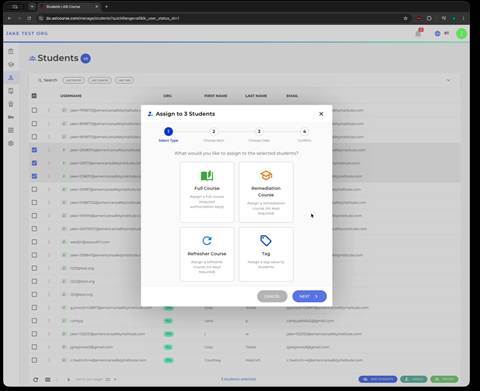
Choosing a course type when assigning to multiple selected students.
Handling insufficient authorization keys
If you choose Full Course and your organization doesn't have enough unused Authorization Keys to cover every selected student, you'll see an Insufficient Authorization Keys warning instead of being able to proceed.
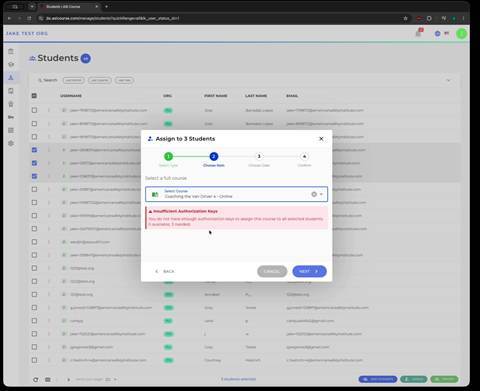
This warning appears when there aren't enough available keys for the number of students selected.
Note: To resolve this, make sure your organization has enough Active keys in the Key Grid for the course you're assigning — either by purchasing more, or by selecting fewer students — before trying again.
Step 3: Choose the course
Once a course type is selected and enough keys are available, choose the specific course, then decide whether the assignment should be available immediately or scheduled for a future date using the date picker. Select Assign to complete the process.
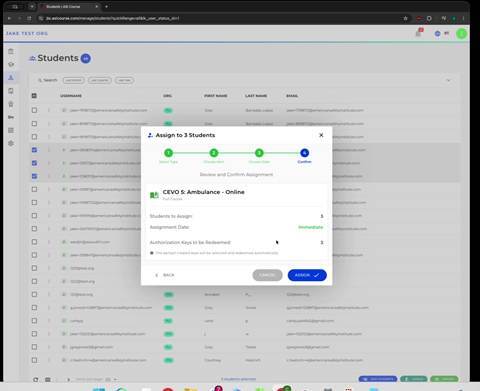
Selecting the specific course and confirming the assignment.
Where the assignment shows up
Once assigned, the course appears in two places:
- On the student's own record, under the Courses tab, alongside their other enrollments.
- On the Enrollments Grid, as a new row with Type set to Full for each student the course was assigned to.
- Full Course consumes one Authorization Key per student; Remediation and Refresher do not.
- Insufficient Authorization Keys means you need more Active keys before you can complete a Full Course assignment.
- Choose Immediate availability or a future scheduled date before confirming.
- Assigned courses appear on the student's Courses tab and as new rows in the Enrollments Grid, with the consumed key visible in the enrollment detail.
Opening an individual enrollment shows its full detail, including the specific Authorization Key that was consumed for that assignment, along with purchase and due date information.
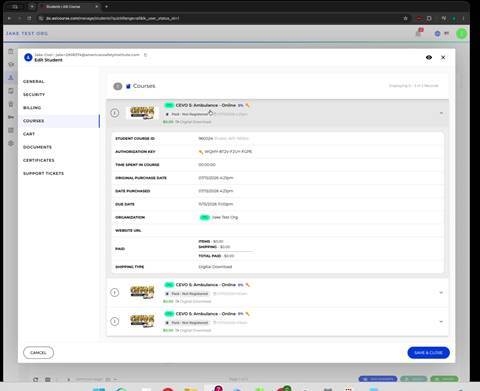
An assigned course's detail view, showing the Authorization Key used and related purchase details.
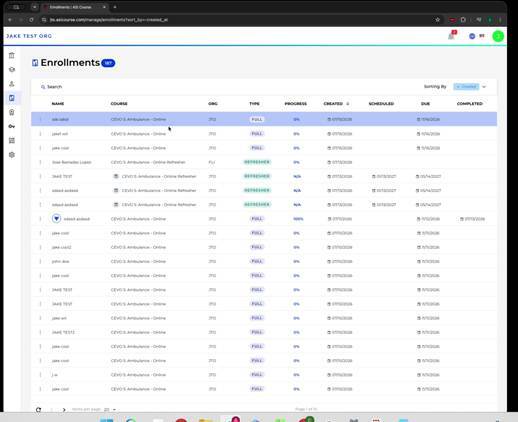
The newly assigned Full courses appearing in the Enrollments Grid.
Quick reference
- Select students in the Students Grid, then use Assign to [N] Students.
- Full Course consumes one Authorization Key per student; Remediation and Refresher do not.
- Insufficient Authorization Keys means you need more Active keys before you can complete a Full Course assignment.
- Choose Immediate availability or a future scheduled date before confirming.
- Assigned courses appear on the student's Courses tab and as new rows in the Enrollments Grid, with the consumed key visible in the enrollment detail.